> ## Documentation Index
> Fetch the complete documentation index at: https://axiom.co/docs/llms.txt
> Use this file to discover all available pages before exploring further.
# Review conversations
> Review AI conversations from queues, capture experts feedback, and turn recurring failures into tracked issues.
## How Review and Issues work together
Review and Issues are part of the same workflow:
* Use **Review** to assess individual conversations and capture feedback.
* When you submit a negative review, Axiom either matches it to an existing issue or creates a new issue.
* Use **Issues** to track recurring failure patterns across many reviewed conversations.
To learn how recurring findings are grouped and managed after review, see [Track issues](/ai-engineering/iterate/issues).
## Open review
To open review:
1. Open **AI engineering**.
2. Click **Review**.
3. Select a capability from the sidebar.
## Choose a queue
Use the queue selector in the page header to change the review source.
* **Flagged** shows traces or conversations that a teammate marked for review.
* **Recent** shows the latest conversations for the selected capability.
* **Negative feedback** shows traces with negative user feedback.
* **Errored** shows traces with errors or exceptions.
* **Reviewed** shows conversations that already have a saved review.
 ## Flag a trace for review
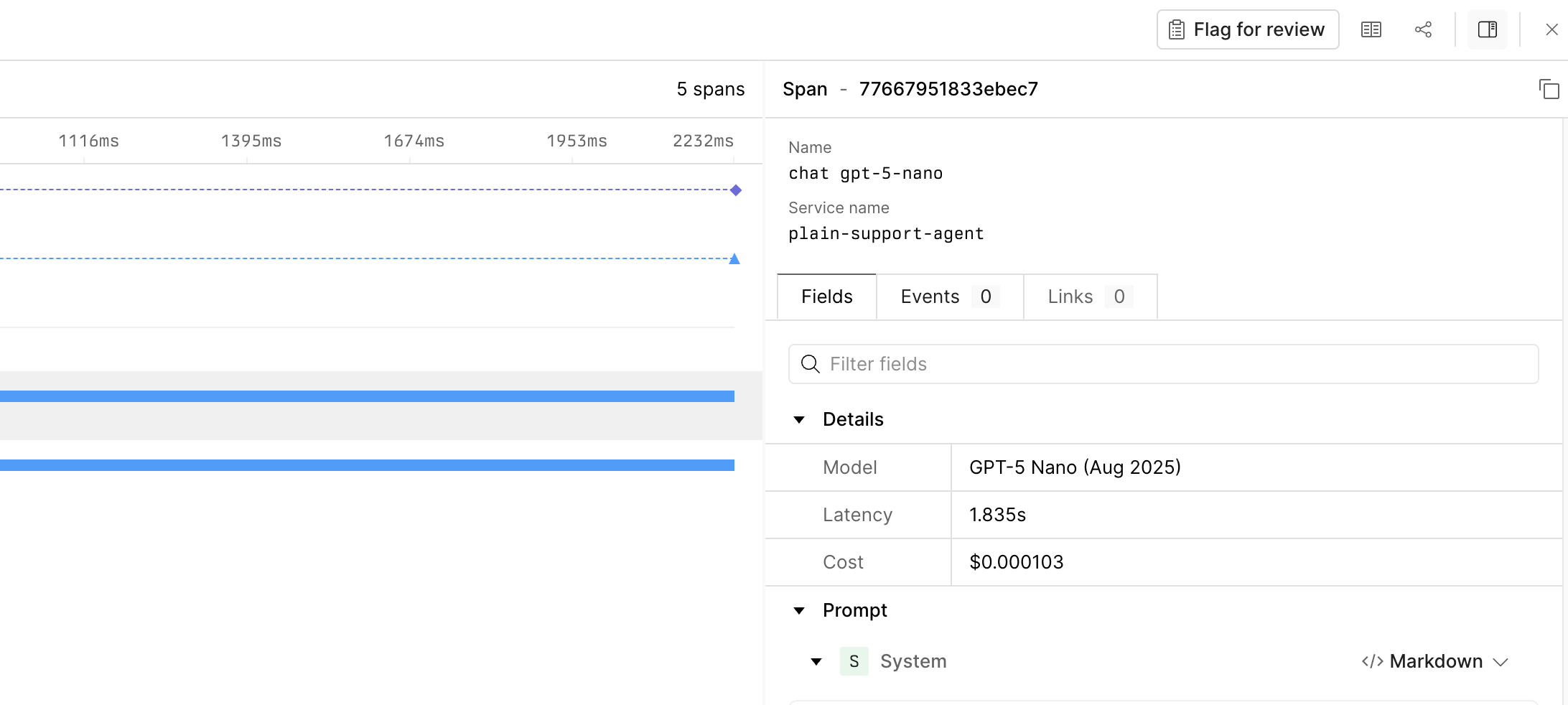
Conversations can be flagged for review through the trace viewer. To flag a trace for review:
1. Open the trace in Axiom.
2. In the trace sidebar, click **Flag for review**.
## Flag a trace for review
Conversations can be flagged for review through the trace viewer. To flag a trace for review:
1. Open the trace in Axiom.
2. In the trace sidebar, click **Flag for review**.
 To open the flagged queue:
1. Open **AI engineering** > **Review**.
2. Select the **Flagged** queue.
## Review a conversation
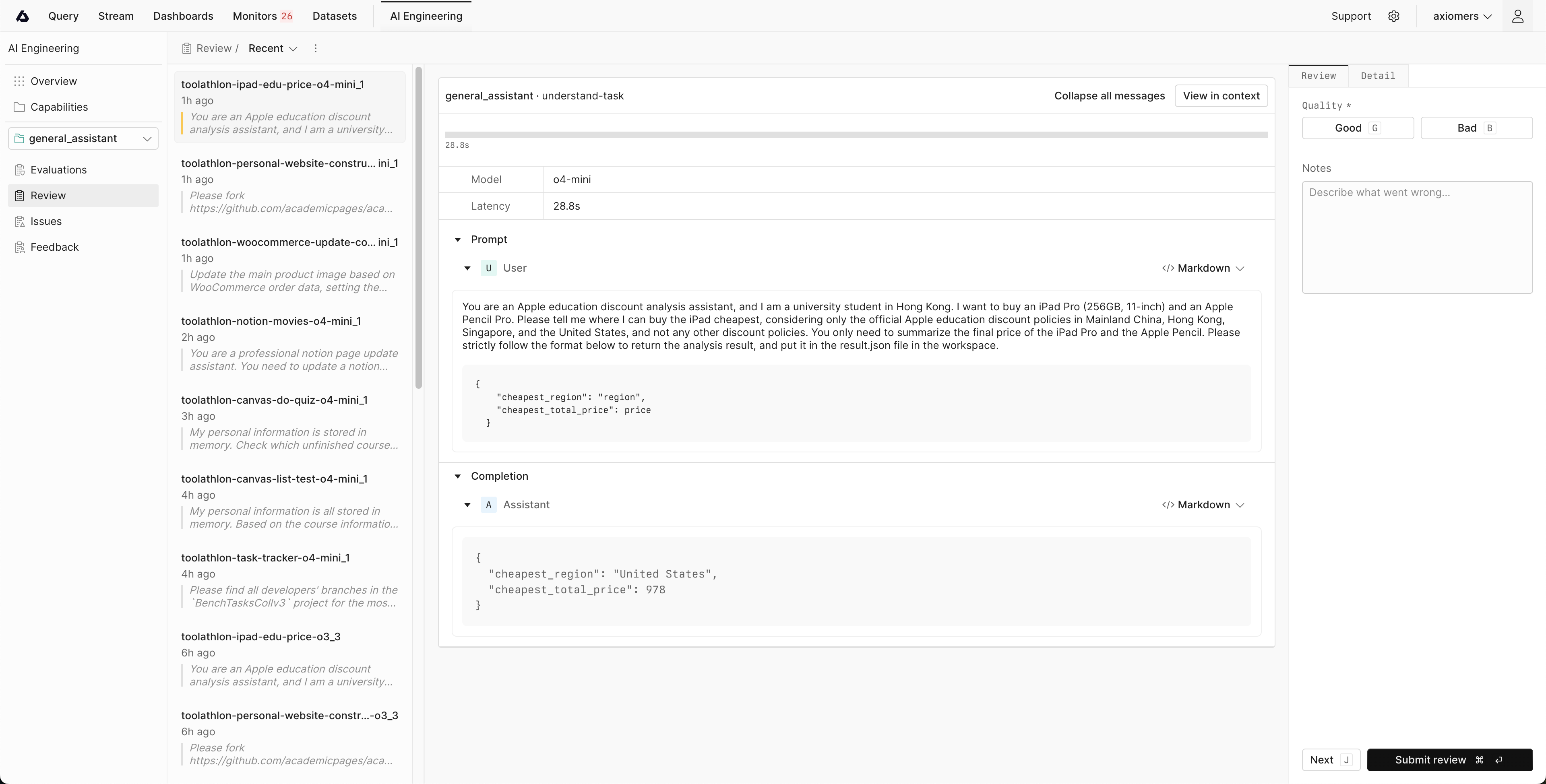
To review a conversation:
1. Select a conversation from the queue list.
2. Inspect the conversation in the center panel.
3. Optional: Open the **Detail** tab to inspect conversation metadata.
4. In the **Review** panel, set **Quality** to **Good** or **Bad**.
5. Enter your notes and submit.
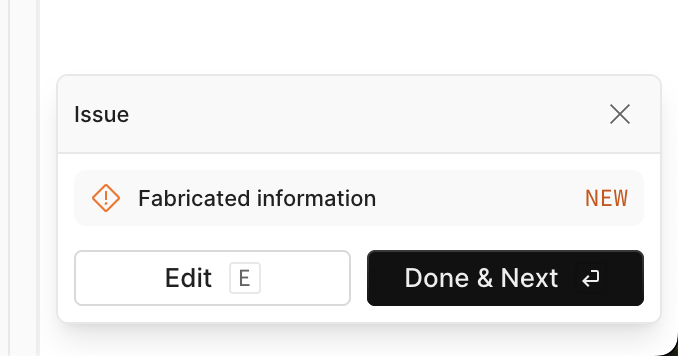
After submission, Axiom processes the review and does one of the following:
* Matches the review to an existing issue.
* Creates a new unresolved issue.
* Skips issue categorization for positive, unrelated, or vague feedback.
If Axiom finds or creates issues, the confirmation panel links to the affected issue records.
If you don't agree with the automatic decision you can click **Edit** and select a different issue or create a new one.
To open the flagged queue:
1. Open **AI engineering** > **Review**.
2. Select the **Flagged** queue.
## Review a conversation
To review a conversation:
1. Select a conversation from the queue list.
2. Inspect the conversation in the center panel.
3. Optional: Open the **Detail** tab to inspect conversation metadata.
4. In the **Review** panel, set **Quality** to **Good** or **Bad**.
5. Enter your notes and submit.
After submission, Axiom processes the review and does one of the following:
* Matches the review to an existing issue.
* Creates a new unresolved issue.
* Skips issue categorization for positive, unrelated, or vague feedback.
If Axiom finds or creates issues, the confirmation panel links to the affected issue records.
If you don't agree with the automatic decision you can click **Edit** and select a different issue or create a new one.
 ## View the decision log
Once you submit a review, a decision is logged with status and reasoning. To inspect review-to-issue decisions:
1. Open **AI engineering** > **Reviews**.
2. Click the queue actions menu.
3. Click **View decision log**.
4. Filter the list by decision type or issue.
The decision log includes these decision types:
* **New** for reviews that created a new issue.
* **Match** for reviews mapped to an existing issue.
* **Skip** for reviews that didn't create or match an issue.
## Move through the queue
To continue working through a queue:
1. Click **Done & Next** to open the next queued conversation.
2. Click **Edit** to override the automatic decision and pick an exisitng issue or create a new one.
## Reopen completed reviews
To inspect saved reviews:
1. Open **AI engineering** > **Review**.
2. Select the same capability.
3. Choose the **Reviewed** queue.
4. Select a conversation from the list.
## Related documentation
Group recurring review findings into issues and manage issue status.
Use production findings to prioritize fixes and improve your capability.
## View the decision log
Once you submit a review, a decision is logged with status and reasoning. To inspect review-to-issue decisions:
1. Open **AI engineering** > **Reviews**.
2. Click the queue actions menu.
3. Click **View decision log**.
4. Filter the list by decision type or issue.
The decision log includes these decision types:
* **New** for reviews that created a new issue.
* **Match** for reviews mapped to an existing issue.
* **Skip** for reviews that didn't create or match an issue.
## Move through the queue
To continue working through a queue:
1. Click **Done & Next** to open the next queued conversation.
2. Click **Edit** to override the automatic decision and pick an exisitng issue or create a new one.
## Reopen completed reviews
To inspect saved reviews:
1. Open **AI engineering** > **Review**.
2. Select the same capability.
3. Choose the **Reviewed** queue.
4. Select a conversation from the list.
## Related documentation
Group recurring review findings into issues and manage issue status.
Use production findings to prioritize fixes and improve your capability.