> ## Documentation Index
> Fetch the complete documentation index at: https://axiom.co/docs/llms.txt
> Use this file to discover all available pages before exploring further.
# Send data from AWS Lambda to Axiom
> This page explains how to send Lambda function logs and platform events to Axiom.
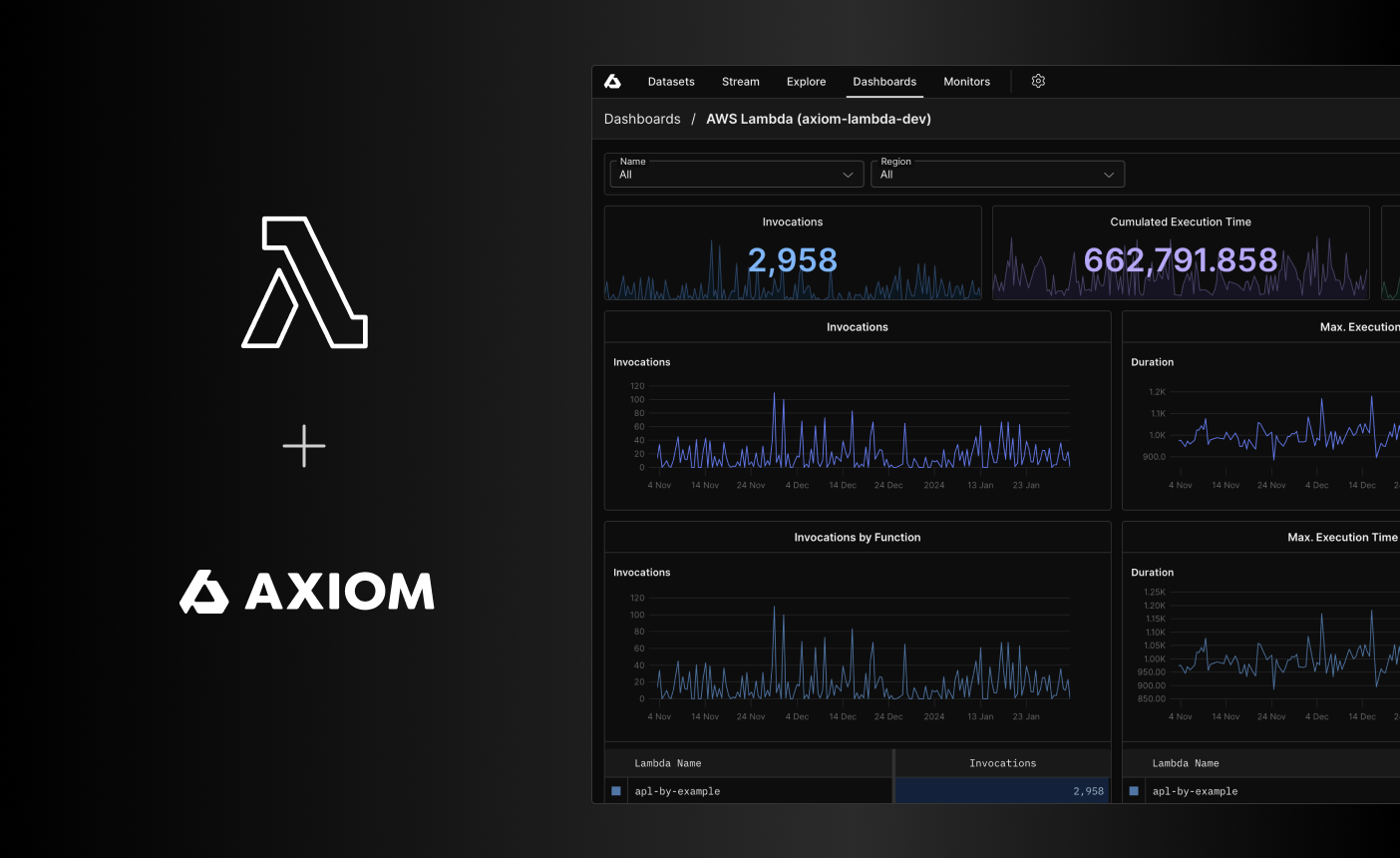 Use the Axiom Lambda Extension to send logs and platform events of your Lambda function to Axiom.
Alternatively, you can use the AWS Distro for OpenTelemetry to send Lambda function logs and platform events to Axiom. For more information, see [AWS Lambda Using OTel](/send-data/aws-lambda-dot).
Axiom detects the extension and provides you with quick filters and a dashboard. For more information on how this enriches your Axiom organization, see [AWS Lambda app](/apps/lambda).
To determine the best method to send data from different AWS services, see [Send data from AWS to Axiom](/send-data/aws-overview).
The Axiom Lambda Extension is an open-source project and welcomes your contributions. For more information, see the [GitHub repository](https://github.com/axiomhq/axiom-lambda-extension).
## Prerequisites
* [Create an Axiom account](https://app.axiom.co/register).
* [Create a dataset in Axiom](/reference/datasets#create-dataset) where you send your data.
* [Create an API token in Axiom](/reference/tokens) with permissions to ingest data to the dataset you have created.
- [Create an account on AWS Cloud](https://signin.aws.amazon.com/signup?request_type=register).
## Setup
1. [Install the Axiom Lambda extension](#installation).
2. Ensure everything works properly in Axiom.
3. [Turn off the permissions for Amazon CloudWatch](#turn-off-cloudwatch-logging).
The last step is important because after you install the Axiom Lambda extension, the Lambda service still sends logs to Amazon CloudWatch Logs. You need to manually turn off Amazon CloudWatch logging.
## Installation
To install the Axiom Lambda Extension, choose one of the following methods:
* [AWS CLI](#install-with-aws-cli)
* [Terraform](#install-with-terraform)
* [AWS Lambda function UI](#install-with-aws-lambda-function-ui)
### Install with AWS CLI
Add the extension as a layer with the AWS CLI:
```bash theme={null}
aws lambda update-function-configuration --function-name my-function \
--layers arn:aws:lambda:AWS_REGION:694952825951:layer:axiom-extension-ARCH:VERSION
```
* Replace `AWS_REGION` with the AWS Region to send the request to. For example, `us-west-1`.
* Replace `ARCH` with the system architecture type. For example, `arm64`.
* Replace `VERSION` with the latest version number specified on the [GitHub Releases](https://github.com/axiomhq/axiom-lambda-extension/releases) page. For example, `11`.
Add the Axiom dataset name and API token to the list of environment variables. For more information on setting environment variables, see the [AWS documentation](https://docs.aws.amazon.com/lambda/latest/dg/configuration-envvars.html).
```bash theme={null}
AXIOM_TOKEN: API_TOKEN
AXIOM_DATASET: DATASET_NAME
AXIOM_URL: AXIOM_DOMAIN
```
Replace `API_TOKEN` with the Axiom API token you have generated. For added security, store the API token in an environment variable.
Replace `DATASET_NAME` with the name of the Axiom dataset where you send your data.
Replace `AXIOM_DOMAIN` with the base domain of your edge deployment. For more information, see [Edge deployments](/reference/edge-deployments).
You have installed the Axiom Lambda Extension. Go to the Axiom UI and ensure your dataset receives events properly.
### Install with Terraform
Choose one of the following to install the Axiom Lambda Extension with Terraform:
* Use plain Terraform code
```tf theme={null}
resource "aws_lambda_function" "test_lambda" {
filename = "lambda_function_payload.zip"
function_name = "lambda_function_name"
role = aws_iam_role.iam_for_lambda.arn
handler = "index.test"
runtime = "nodejs14.x"
ephemeral_storage {
size = 10240 # Min 512 MB and the Max 10240 MB
}
environment {
variables = {
AXIOM_TOKEN = "API_TOKEN"
AXIOM_DATASET = "DATASET_NAME"
AXIOM_URL = "AXIOM_DOMAIN"
}
}
layers = [
"arn:aws:lambda:AWS_REGION:694952825951:layer:axiom-extension-ARCH:VERSION"
]
}
```
Replace `AWS_REGION` with the AWS Region to send the request to. For example, `us-west-1`.
Replace `ARCH` with the system architecture type. For example, `arm64`.
Replace `VERSION` with the latest version number specified on the [GitHub Releases](https://github.com/axiomhq/axiom-lambda-extension/releases) page. For example, `11`.
Replace `API_TOKEN` with the Axiom API token you have generated. For added security, store the API token in an environment variable.
Replace `DATASET_NAME` with the name of the Axiom dataset where you send your data.
Replace `AXIOM_DOMAIN` with the base domain of your edge deployment. For more information, see [Edge deployments](/reference/edge-deployments).
* Use the [AWS Lambda Terraform module](https://registry.terraform.io/modules/terraform-aws-modules/lambda/aws/latest)
```tf theme={null}
module "lambda_function" {
source = "terraform-aws-modules/lambda/aws"
function_name = "my-lambda1"
description = "My awesome lambda function"
handler = "index.lambda_handler"
runtime = "python3.8"
source_path = "../src/lambda-function1"
layers = [
"arn:aws:lambda:AWS_REGION:694952825951:layer:axiom-extension-ARCH:VERSION"
]
environment_variables = {
AXIOM_TOKEN = "API_TOKEN"
AXIOM_DATASET = "DATASET_NAME"
AXIOM_URL = "AXIOM_DOMAIN"
}
}
```
Replace `AWS_REGION` with the AWS Region to send the request to. For example, `us-west-1`.
Replace `ARCH` with the system architecture type. For example, `arm64`.
Replace `VERSION` with the latest version number specified on the [GitHub Releases](https://github.com/axiomhq/axiom-lambda-extension/releases) page. For example, `11`.
Replace `API_TOKEN` with the Axiom API token you have generated. For added security, store the API token in an environment variable.
Replace `DATASET_NAME` with the name of the Axiom dataset where you send your data.
Replace `AXIOM_DOMAIN` with the base domain of your edge deployment. For more information, see [Edge deployments](/reference/edge-deployments).
You have installed the Axiom Lambda Extension. Go to the Axiom UI and ensure your dataset receives events properly.
### Install with AWS Lambda function UI
Add a new layer to your Lambda function with the following ARN (Amazon Resource Name). For more information on adding layers to your function, see the [AWS documentation](https://docs.aws.amazon.com/lambda/latest/dg/adding-layers.html).
```bash theme={null}
arn:aws:lambda:AWS_REGION:694952825951:layer:axiom-extension-ARCH:VERSION
```
Replace `AWS_REGION` with the AWS Region to send the request to. For example, `us-west-1`.
Replace `ARCH` with the system architecture type. For example, `arm64`.
Replace `VERSION` with the latest version number specified on the [GitHub Releases](https://github.com/axiomhq/axiom-lambda-extension/releases) page. For example, `11`.
Add the Axiom dataset name and API token to the list of environment variables. For more information on setting environment variables, see the [AWS documentation](https://docs.aws.amazon.com/lambda/latest/dg/configuration-envvars.html).
```bash theme={null}
AXIOM_TOKEN: API_TOKEN
AXIOM_DATASET: DATASET_NAME
```
Replace `API_TOKEN` with the Axiom API token you have generated. For added security, store the API token in an environment variable.
Replace `DATASET_NAME` with the name of the Axiom dataset where you send your data.
You have installed the Axiom Lambda Extension. Go to the Axiom UI and ensure your dataset receives events properly.
## Turn off Amazon CloudWatch logging
After you install the Axiom Lambda extension, the Lambda service still sends logs to CloudWatch Logs. You need to manually turn off Amazon CloudWatch logging.
To turn off Amazon CloudWatch logging, deny the Lambda function access to Amazon CloudWatch by editing the permissions:
1. In the AWS Lambda function UI, go to **Configuration > Permissions**.
2. In the **Execution role** section, click the role related to Amazon CloudWatch Logs.
3. In the **Permissions** tab, select the role, and then click **Remove**.
### Requirements for log level fields
The Stream and Query tabs allow you to easily detect warnings and errors in your logs by highlighting the severity of log entries in different colors. As a prerequisite, specify the log level in the data you send to Axiom. For Open Telemetry logs, specify the log level in the following fields:
* `record.error`
* `record.level`
* `record.severity`
* `type`
## Troubleshooting
* Ensure the Axiom API token has permission to ingest data into the dataset.
* Check the function logs on the AWS console. The Axiom Lambda Extension logs any errors with setup or ingest.
For testing purposes, set the `PANIC_ON_API_ERR` environment variable to `true`. This means that the Axiom Lambda Extension crashes if it can’t connect to Axiom.
Use the Axiom Lambda Extension to send logs and platform events of your Lambda function to Axiom.
Alternatively, you can use the AWS Distro for OpenTelemetry to send Lambda function logs and platform events to Axiom. For more information, see [AWS Lambda Using OTel](/send-data/aws-lambda-dot).
Axiom detects the extension and provides you with quick filters and a dashboard. For more information on how this enriches your Axiom organization, see [AWS Lambda app](/apps/lambda).
To determine the best method to send data from different AWS services, see [Send data from AWS to Axiom](/send-data/aws-overview).
The Axiom Lambda Extension is an open-source project and welcomes your contributions. For more information, see the [GitHub repository](https://github.com/axiomhq/axiom-lambda-extension).
## Prerequisites
* [Create an Axiom account](https://app.axiom.co/register).
* [Create a dataset in Axiom](/reference/datasets#create-dataset) where you send your data.
* [Create an API token in Axiom](/reference/tokens) with permissions to ingest data to the dataset you have created.
- [Create an account on AWS Cloud](https://signin.aws.amazon.com/signup?request_type=register).
## Setup
1. [Install the Axiom Lambda extension](#installation).
2. Ensure everything works properly in Axiom.
3. [Turn off the permissions for Amazon CloudWatch](#turn-off-cloudwatch-logging).
The last step is important because after you install the Axiom Lambda extension, the Lambda service still sends logs to Amazon CloudWatch Logs. You need to manually turn off Amazon CloudWatch logging.
## Installation
To install the Axiom Lambda Extension, choose one of the following methods:
* [AWS CLI](#install-with-aws-cli)
* [Terraform](#install-with-terraform)
* [AWS Lambda function UI](#install-with-aws-lambda-function-ui)
### Install with AWS CLI
Add the extension as a layer with the AWS CLI:
```bash theme={null}
aws lambda update-function-configuration --function-name my-function \
--layers arn:aws:lambda:AWS_REGION:694952825951:layer:axiom-extension-ARCH:VERSION
```
* Replace `AWS_REGION` with the AWS Region to send the request to. For example, `us-west-1`.
* Replace `ARCH` with the system architecture type. For example, `arm64`.
* Replace `VERSION` with the latest version number specified on the [GitHub Releases](https://github.com/axiomhq/axiom-lambda-extension/releases) page. For example, `11`.
Add the Axiom dataset name and API token to the list of environment variables. For more information on setting environment variables, see the [AWS documentation](https://docs.aws.amazon.com/lambda/latest/dg/configuration-envvars.html).
```bash theme={null}
AXIOM_TOKEN: API_TOKEN
AXIOM_DATASET: DATASET_NAME
AXIOM_URL: AXIOM_DOMAIN
```
Replace `API_TOKEN` with the Axiom API token you have generated. For added security, store the API token in an environment variable.
Replace `DATASET_NAME` with the name of the Axiom dataset where you send your data.
Replace `AXIOM_DOMAIN` with the base domain of your edge deployment. For more information, see [Edge deployments](/reference/edge-deployments).
You have installed the Axiom Lambda Extension. Go to the Axiom UI and ensure your dataset receives events properly.
### Install with Terraform
Choose one of the following to install the Axiom Lambda Extension with Terraform:
* Use plain Terraform code
```tf theme={null}
resource "aws_lambda_function" "test_lambda" {
filename = "lambda_function_payload.zip"
function_name = "lambda_function_name"
role = aws_iam_role.iam_for_lambda.arn
handler = "index.test"
runtime = "nodejs14.x"
ephemeral_storage {
size = 10240 # Min 512 MB and the Max 10240 MB
}
environment {
variables = {
AXIOM_TOKEN = "API_TOKEN"
AXIOM_DATASET = "DATASET_NAME"
AXIOM_URL = "AXIOM_DOMAIN"
}
}
layers = [
"arn:aws:lambda:AWS_REGION:694952825951:layer:axiom-extension-ARCH:VERSION"
]
}
```
Replace `AWS_REGION` with the AWS Region to send the request to. For example, `us-west-1`.
Replace `ARCH` with the system architecture type. For example, `arm64`.
Replace `VERSION` with the latest version number specified on the [GitHub Releases](https://github.com/axiomhq/axiom-lambda-extension/releases) page. For example, `11`.
Replace `API_TOKEN` with the Axiom API token you have generated. For added security, store the API token in an environment variable.
Replace `DATASET_NAME` with the name of the Axiom dataset where you send your data.
Replace `AXIOM_DOMAIN` with the base domain of your edge deployment. For more information, see [Edge deployments](/reference/edge-deployments).
* Use the [AWS Lambda Terraform module](https://registry.terraform.io/modules/terraform-aws-modules/lambda/aws/latest)
```tf theme={null}
module "lambda_function" {
source = "terraform-aws-modules/lambda/aws"
function_name = "my-lambda1"
description = "My awesome lambda function"
handler = "index.lambda_handler"
runtime = "python3.8"
source_path = "../src/lambda-function1"
layers = [
"arn:aws:lambda:AWS_REGION:694952825951:layer:axiom-extension-ARCH:VERSION"
]
environment_variables = {
AXIOM_TOKEN = "API_TOKEN"
AXIOM_DATASET = "DATASET_NAME"
AXIOM_URL = "AXIOM_DOMAIN"
}
}
```
Replace `AWS_REGION` with the AWS Region to send the request to. For example, `us-west-1`.
Replace `ARCH` with the system architecture type. For example, `arm64`.
Replace `VERSION` with the latest version number specified on the [GitHub Releases](https://github.com/axiomhq/axiom-lambda-extension/releases) page. For example, `11`.
Replace `API_TOKEN` with the Axiom API token you have generated. For added security, store the API token in an environment variable.
Replace `DATASET_NAME` with the name of the Axiom dataset where you send your data.
Replace `AXIOM_DOMAIN` with the base domain of your edge deployment. For more information, see [Edge deployments](/reference/edge-deployments).
You have installed the Axiom Lambda Extension. Go to the Axiom UI and ensure your dataset receives events properly.
### Install with AWS Lambda function UI
Add a new layer to your Lambda function with the following ARN (Amazon Resource Name). For more information on adding layers to your function, see the [AWS documentation](https://docs.aws.amazon.com/lambda/latest/dg/adding-layers.html).
```bash theme={null}
arn:aws:lambda:AWS_REGION:694952825951:layer:axiom-extension-ARCH:VERSION
```
Replace `AWS_REGION` with the AWS Region to send the request to. For example, `us-west-1`.
Replace `ARCH` with the system architecture type. For example, `arm64`.
Replace `VERSION` with the latest version number specified on the [GitHub Releases](https://github.com/axiomhq/axiom-lambda-extension/releases) page. For example, `11`.
Add the Axiom dataset name and API token to the list of environment variables. For more information on setting environment variables, see the [AWS documentation](https://docs.aws.amazon.com/lambda/latest/dg/configuration-envvars.html).
```bash theme={null}
AXIOM_TOKEN: API_TOKEN
AXIOM_DATASET: DATASET_NAME
```
Replace `API_TOKEN` with the Axiom API token you have generated. For added security, store the API token in an environment variable.
Replace `DATASET_NAME` with the name of the Axiom dataset where you send your data.
You have installed the Axiom Lambda Extension. Go to the Axiom UI and ensure your dataset receives events properly.
## Turn off Amazon CloudWatch logging
After you install the Axiom Lambda extension, the Lambda service still sends logs to CloudWatch Logs. You need to manually turn off Amazon CloudWatch logging.
To turn off Amazon CloudWatch logging, deny the Lambda function access to Amazon CloudWatch by editing the permissions:
1. In the AWS Lambda function UI, go to **Configuration > Permissions**.
2. In the **Execution role** section, click the role related to Amazon CloudWatch Logs.
3. In the **Permissions** tab, select the role, and then click **Remove**.
### Requirements for log level fields
The Stream and Query tabs allow you to easily detect warnings and errors in your logs by highlighting the severity of log entries in different colors. As a prerequisite, specify the log level in the data you send to Axiom. For Open Telemetry logs, specify the log level in the following fields:
* `record.error`
* `record.level`
* `record.severity`
* `type`
## Troubleshooting
* Ensure the Axiom API token has permission to ingest data into the dataset.
* Check the function logs on the AWS console. The Axiom Lambda Extension logs any errors with setup or ingest.
For testing purposes, set the `PANIC_ON_API_ERR` environment variable to `true`. This means that the Axiom Lambda Extension crashes if it can’t connect to Axiom.