> ## Documentation Index
> Fetch the complete documentation index at: https://axiom.co/docs/llms.txt
> Use this file to discover all available pages before exploring further.
# Send data from Cribl to Axiom
> Learn how to configure Cribl LogStream to forward logs to Axiom using both HTTP and Syslog destinations.
export const endpointName_0 = "Syslog"
Cribl is a data processing framework often used with machine data. It allows you to parse, reduce, transform, and route data to and from various systems in your infrastructure.
You can send logs from Cribl LogStream to Axiom using HTTP or Syslog destination.
## Prerequisites
* [Create an Axiom account](https://app.axiom.co/register).
* [Create a dataset in Axiom](/reference/datasets#create-dataset) where you send your data.
* [Create an API token in Axiom](/reference/tokens) with permissions to ingest data to the dataset you have created.
## Set up log forwarding from Cribl to Axiom using the HTTP destination
Below are the steps to set up and send logs from Cribl to Axiom using the HTTP destination:
1. Create a new HTTP destination in Cribl LogStream:
Open Cribl’s UI and navigate to **Destinations > HTTP**. Click on `+` Add New to create a new destination.
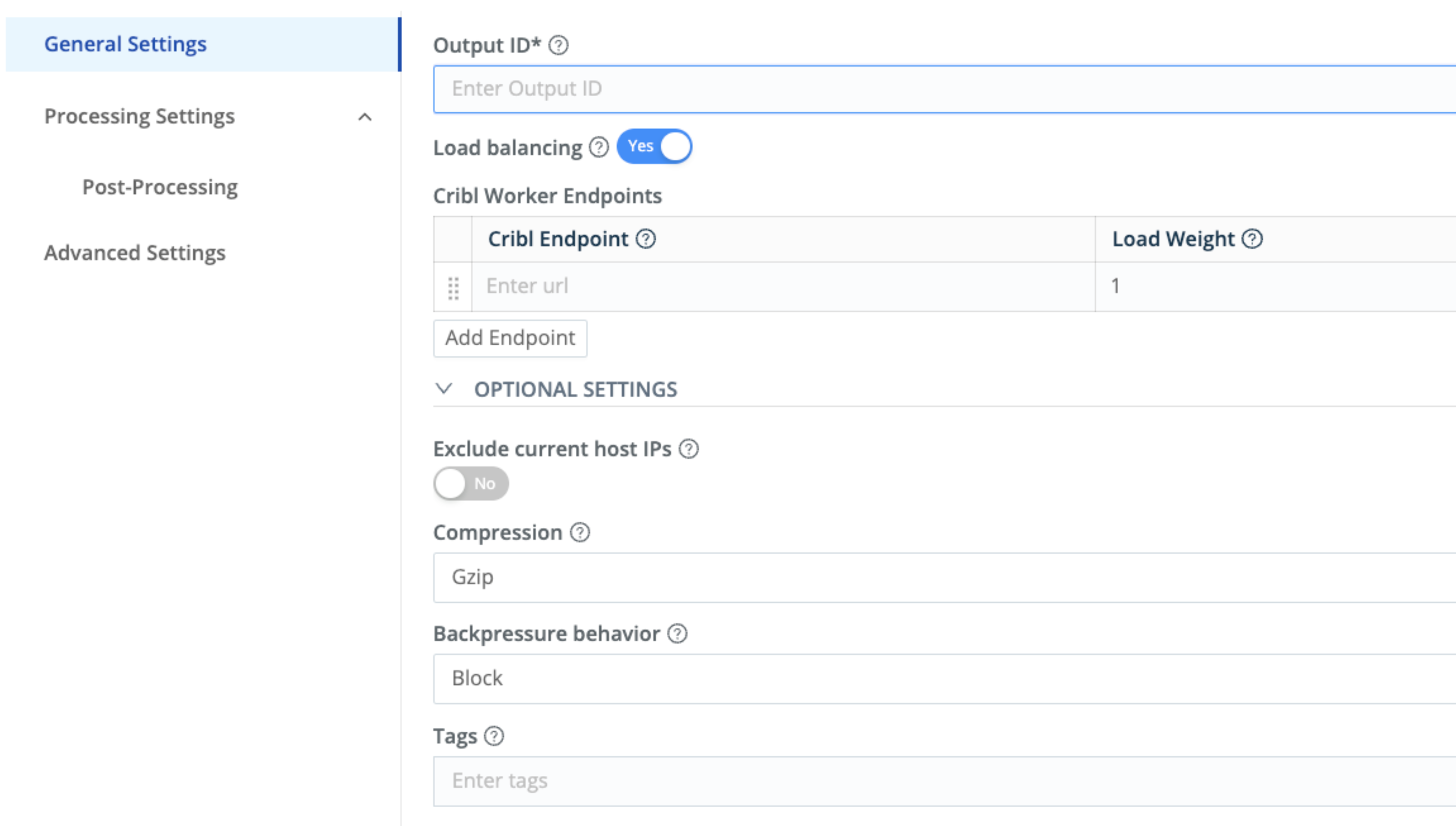 2. Configure the destination:
* **Name:** Choose a name for the destination.
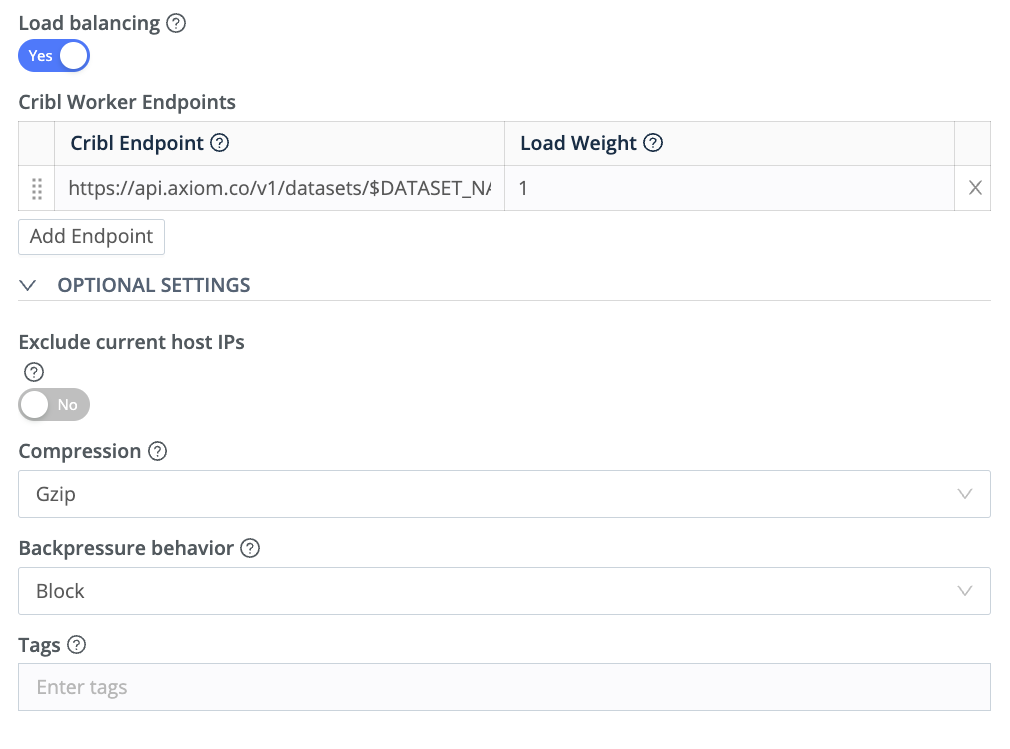
* **Endpoint URL:** The URL of your Axiom log ingest endpoint `https://AXIOM_DOMAIN/v1/ingest/DATASET_NAME`.
Replace `AXIOM_DOMAIN` with the base domain of your edge deployment. For more information, see [Edge deployments](/reference/edge-deployments).
Replace `DATASET_NAME` with the name of the Axiom dataset where you send your data.
* **Method:** Choose `POST`.
* **Event Breaker:** Set this to One Event Per Request or CRLF (Carriage Return Line Feed), depending on how you want to separate events.
2. Configure the destination:
* **Name:** Choose a name for the destination.
* **Endpoint URL:** The URL of your Axiom log ingest endpoint `https://AXIOM_DOMAIN/v1/ingest/DATASET_NAME`.
Replace `AXIOM_DOMAIN` with the base domain of your edge deployment. For more information, see [Edge deployments](/reference/edge-deployments).
Replace `DATASET_NAME` with the name of the Axiom dataset where you send your data.
* **Method:** Choose `POST`.
* **Event Breaker:** Set this to One Event Per Request or CRLF (Carriage Return Line Feed), depending on how you want to separate events.
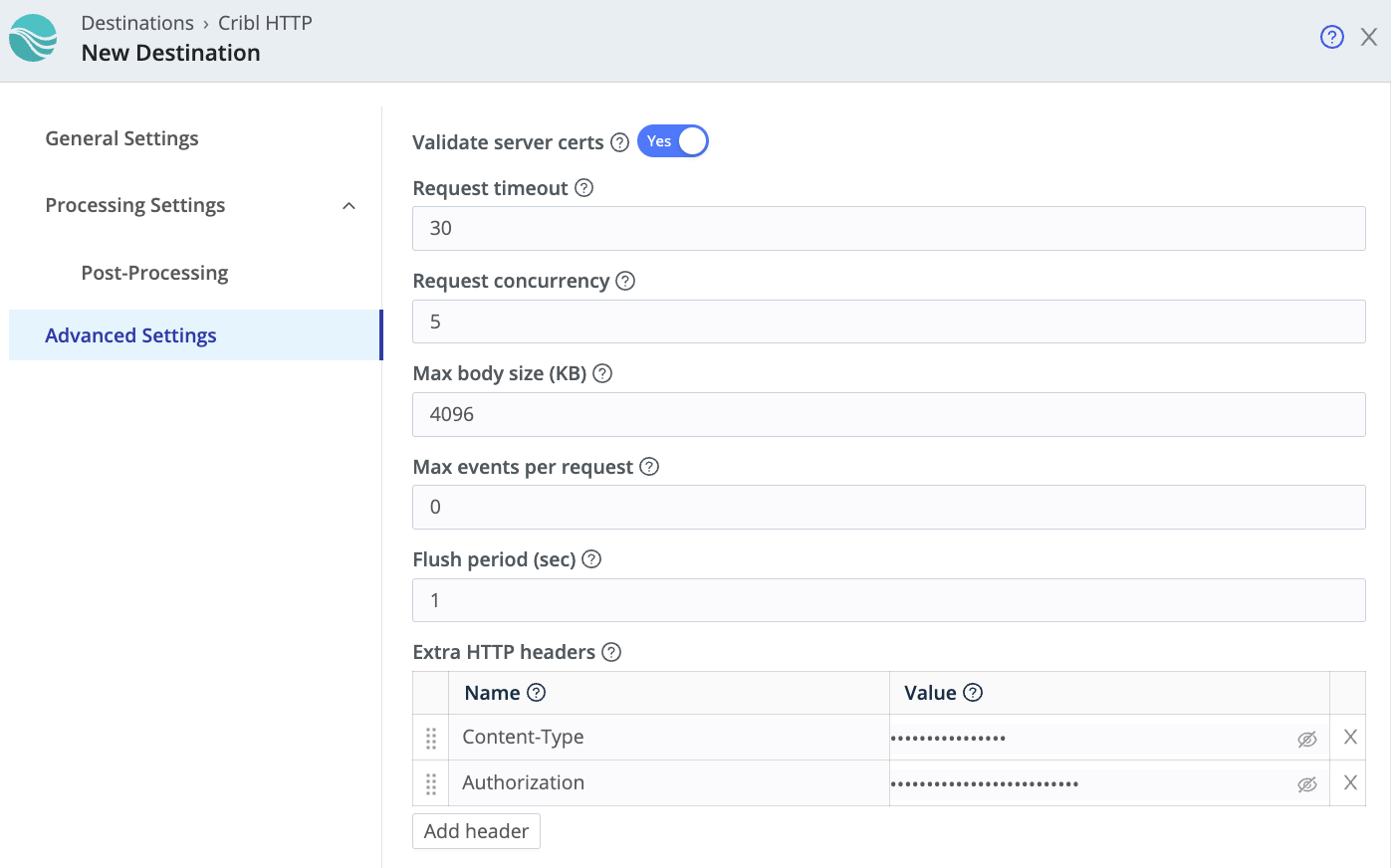
 3. Headers:
You may need to add some headers. Here is a common example:
* **Content-Type:** Set this to `application/json`.
* **Authorization:** Set this to `Bearer API_TOKEN`.
Replace `API_TOKEN` with the Axiom API token you have generated. For added security, store the API token in an environment variable.
3. Headers:
You may need to add some headers. Here is a common example:
* **Content-Type:** Set this to `application/json`.
* **Authorization:** Set this to `Bearer API_TOKEN`.
Replace `API_TOKEN` with the Axiom API token you have generated. For added security, store the API token in an environment variable.
 4. Body:
In the Body Template, input `{{_raw}}`. This forwards the raw log event to Axiom.
5. Save and enable the destination:
After you’ve finished configuring the destination, save your changes and make sure the destination is enabled.
## Set up log forwarding from Cribl to Axiom using the Syslog destination
### Create Syslog endpoint
1. Click **Settings > Endpoints**.
2. Click **New endpoint**.
3. Click **{endpointName_0}**.
4. Name the endpoint.
5. Select the dataset where you want to send data.
6. Copy the URL displayed for the newly created endpoint. This is the target URL where you send the data.
### Configure destination in Cribl
1. Create a new Syslog destination in Cribl LogStream:
Open Cribl’s UI and navigate to **Destinations > Syslog**. Click on `+` Add New to create a new destination.
2. Configure the destination:
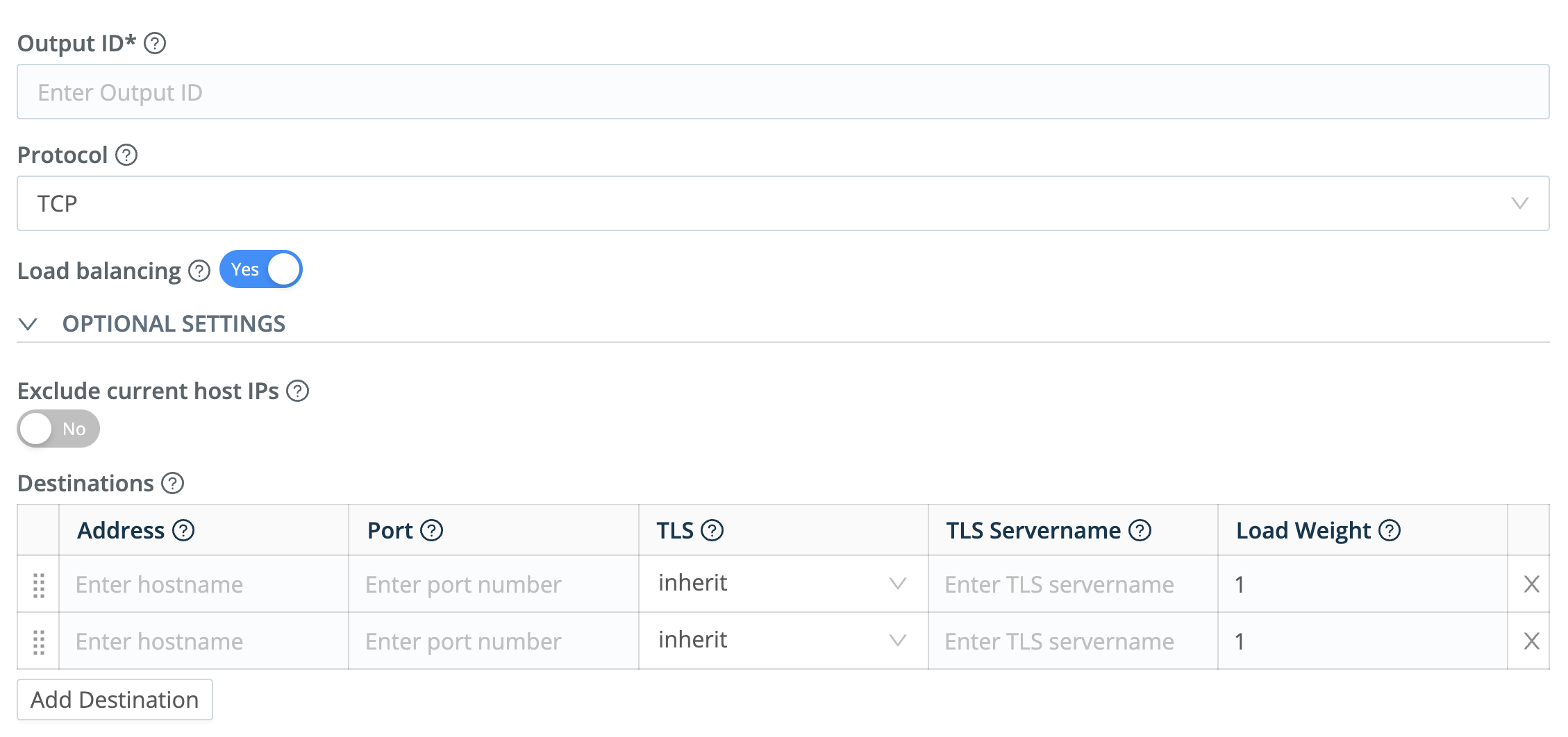
* **Name:** Choose a name and output ID for the destination.
* **Protocol:** Choose the protocol for the Syslog messages. Select the TCP protocol.
* **Destination Address:** Input the address of the Axiom endpoint to which you want to send logs. This address is generated from your Syslog endpoint in Axiom and follows this format: `tcp+tls://qsfgsfhjsfkbx9.syslog.axiom.co:6514`.
* **Destination Port:** Enter the port number on which the Axiom endpoint is listening for Syslog messages which is `6514`
* **Format:** Choose the Syslog message format. `RFC3164` is a common format and is generally recommended.
* **Facility:** Choose the facility code to use in the Syslog messages. The facility code represents the type of process that’s generating the Syslog messages.
* **Severity:** Choose the severity level to use in the Syslog messages. The severity level represents the importance of the Syslog messages.
4. Body:
In the Body Template, input `{{_raw}}`. This forwards the raw log event to Axiom.
5. Save and enable the destination:
After you’ve finished configuring the destination, save your changes and make sure the destination is enabled.
## Set up log forwarding from Cribl to Axiom using the Syslog destination
### Create Syslog endpoint
1. Click **Settings > Endpoints**.
2. Click **New endpoint**.
3. Click **{endpointName_0}**.
4. Name the endpoint.
5. Select the dataset where you want to send data.
6. Copy the URL displayed for the newly created endpoint. This is the target URL where you send the data.
### Configure destination in Cribl
1. Create a new Syslog destination in Cribl LogStream:
Open Cribl’s UI and navigate to **Destinations > Syslog**. Click on `+` Add New to create a new destination.
2. Configure the destination:
* **Name:** Choose a name and output ID for the destination.
* **Protocol:** Choose the protocol for the Syslog messages. Select the TCP protocol.
* **Destination Address:** Input the address of the Axiom endpoint to which you want to send logs. This address is generated from your Syslog endpoint in Axiom and follows this format: `tcp+tls://qsfgsfhjsfkbx9.syslog.axiom.co:6514`.
* **Destination Port:** Enter the port number on which the Axiom endpoint is listening for Syslog messages which is `6514`
* **Format:** Choose the Syslog message format. `RFC3164` is a common format and is generally recommended.
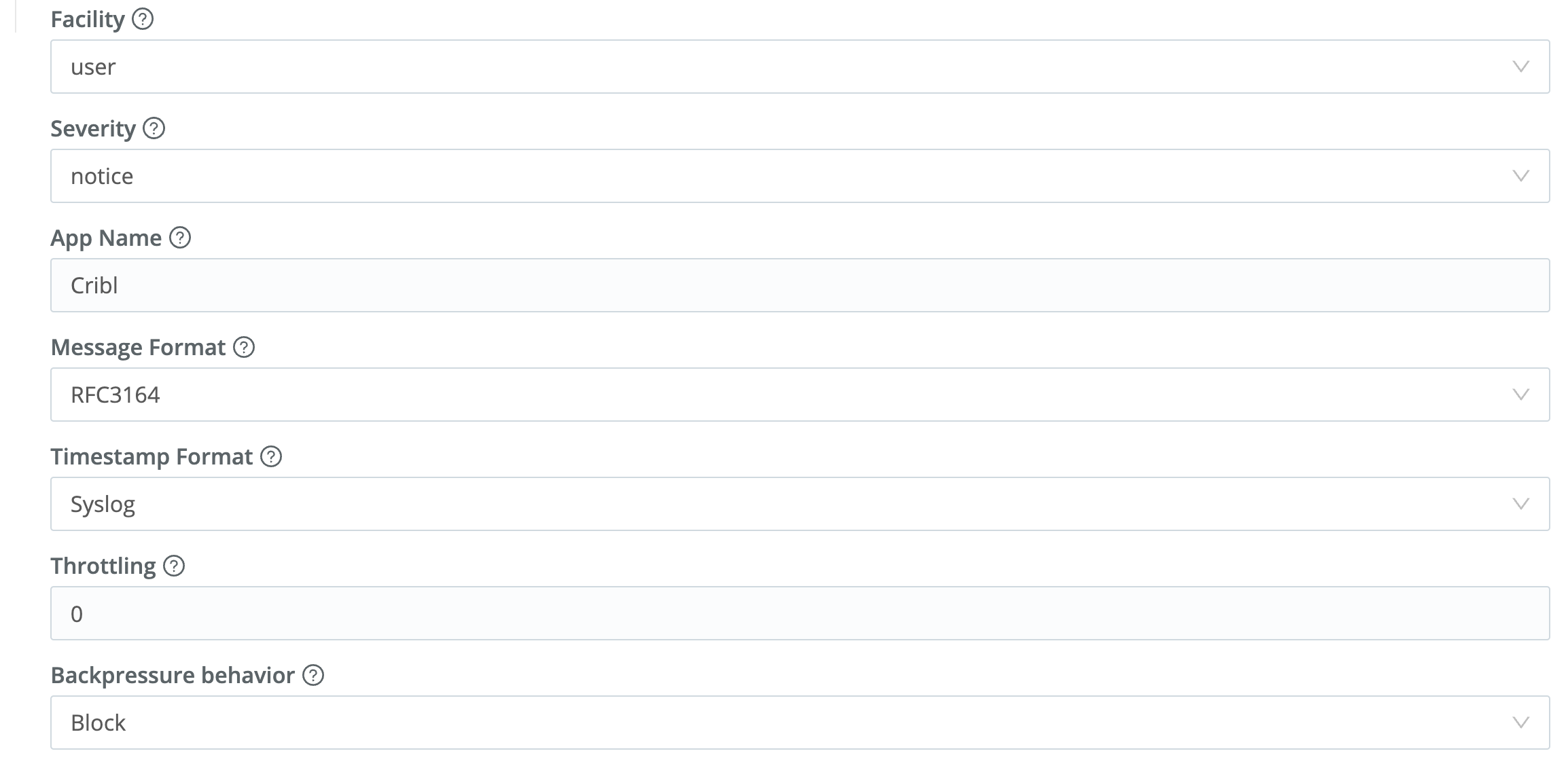
* **Facility:** Choose the facility code to use in the Syslog messages. The facility code represents the type of process that’s generating the Syslog messages.
* **Severity:** Choose the severity level to use in the Syslog messages. The severity level represents the importance of the Syslog messages.
 3. Configure the Message:
* **Timestamp Format:** Choose the timestamp format to use in the Syslog messages.
* **Application Name Field:** Enter the name of the field to use as the app name in the Syslog messages.
* **Message Field:** Enter the name of the field to use as the message in the Syslog messages. Typically, this would be `_raw`.
* **Throttling:** Enter the throttling value. Throttling is a mechanism to control the data flow rate from the source (Cribl) to the destination (in this case, an Axiom Syslog Endpoint).
3. Configure the Message:
* **Timestamp Format:** Choose the timestamp format to use in the Syslog messages.
* **Application Name Field:** Enter the name of the field to use as the app name in the Syslog messages.
* **Message Field:** Enter the name of the field to use as the message in the Syslog messages. Typically, this would be `_raw`.
* **Throttling:** Enter the throttling value. Throttling is a mechanism to control the data flow rate from the source (Cribl) to the destination (in this case, an Axiom Syslog Endpoint).
 4. Save and enable the destination
After you’ve finished configuring the destination, save your changes and make sure the destination is enabled.
4. Save and enable the destination
After you’ve finished configuring the destination, save your changes and make sure the destination is enabled.