Top list
This section explains how to create top list dashboard elements and add them to your dashboard.
The top list dashboard element displays the top results from your query, showing the most significant items based on your aggregation and grouping. It can display results as either a table of totals or as time series charts, depending on the aggregation type used.
Prerequisites
- Create an Axiom account.
- Create a dataset in Axiom where you send your data.
- Send data to your Axiom dataset.
- Create an empty dashboard.
Create a dashboard element
- Go to the Dashboards tab and open the dashboard to which you want to add the top list.
- Click Edit dashboard.
- Click Add element in the top right corner.
- Click Top list from the list.
- Choose one of the following:
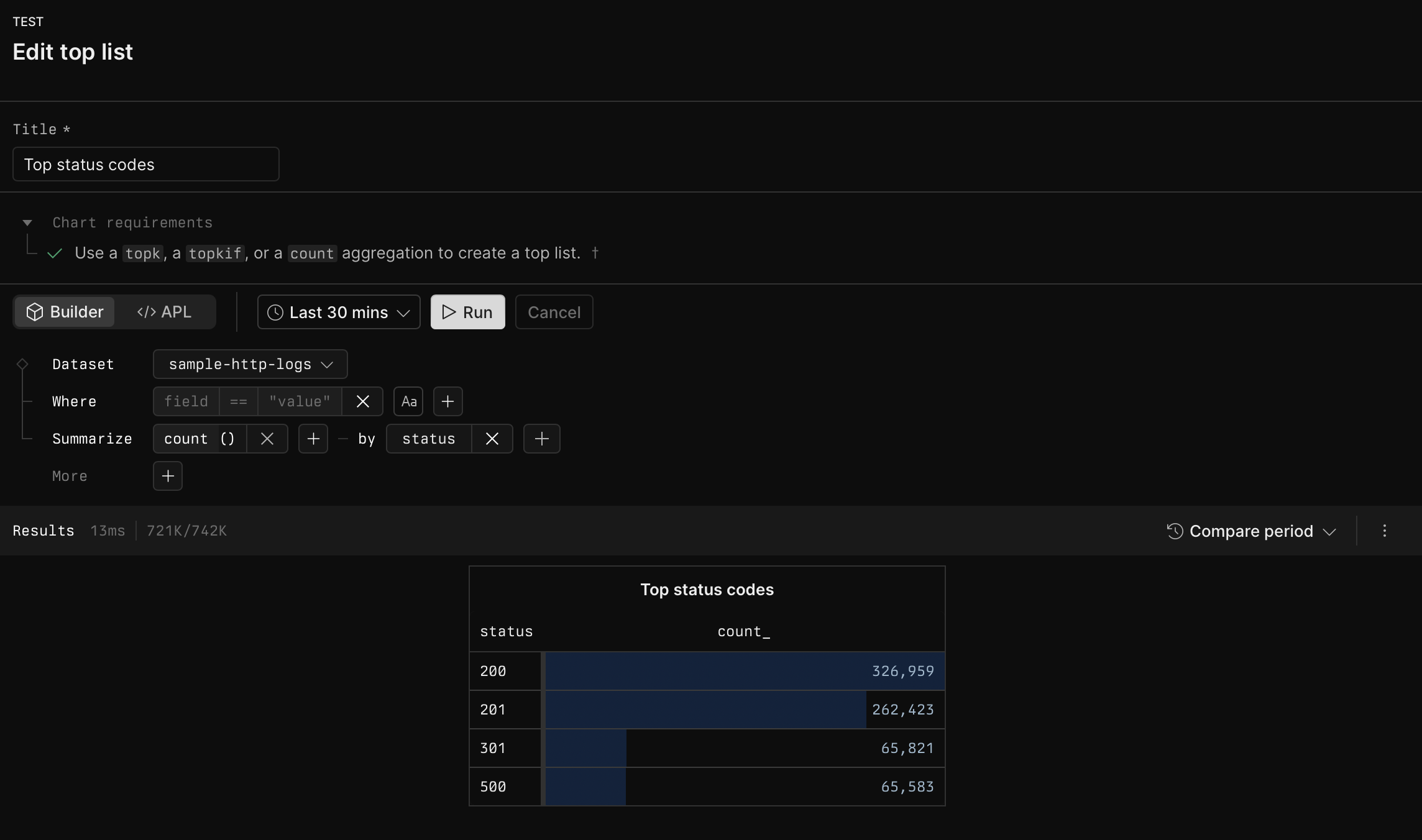
- Click Builder to create your chart using a visual query builder. For more information, see Create chart using visual query builder.
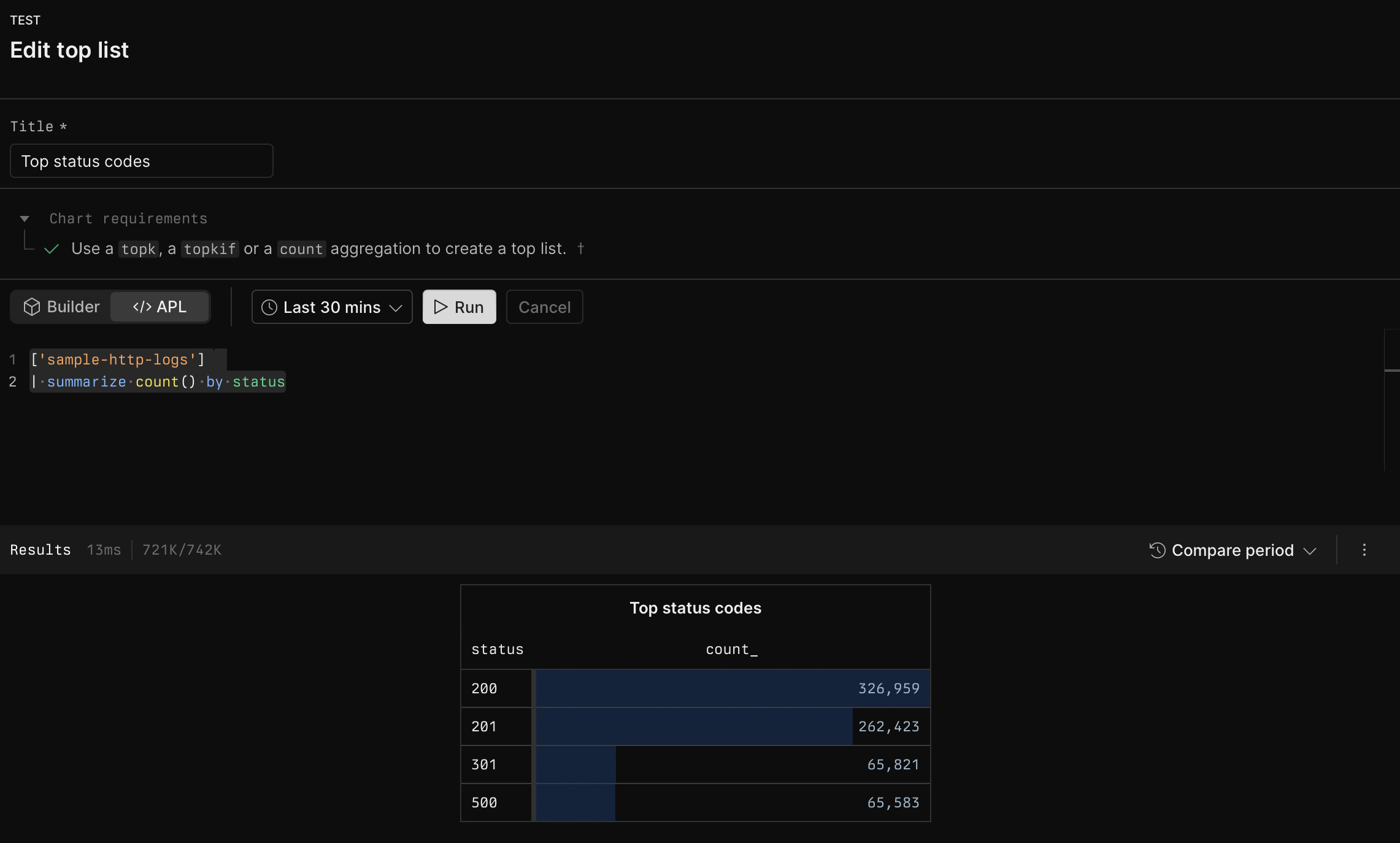
- Click APL to create your chart using the Axiom Processing Language (APL). Create a chart in the same way you create a chart in the Editor of the Query tab.
- Optional: Configure the dashboard element.
- Click Save.
The new element appears in your dashboard. At the bottom, click Save to save your changes to the dashboard.
Example with Builder
Example with APL
APL