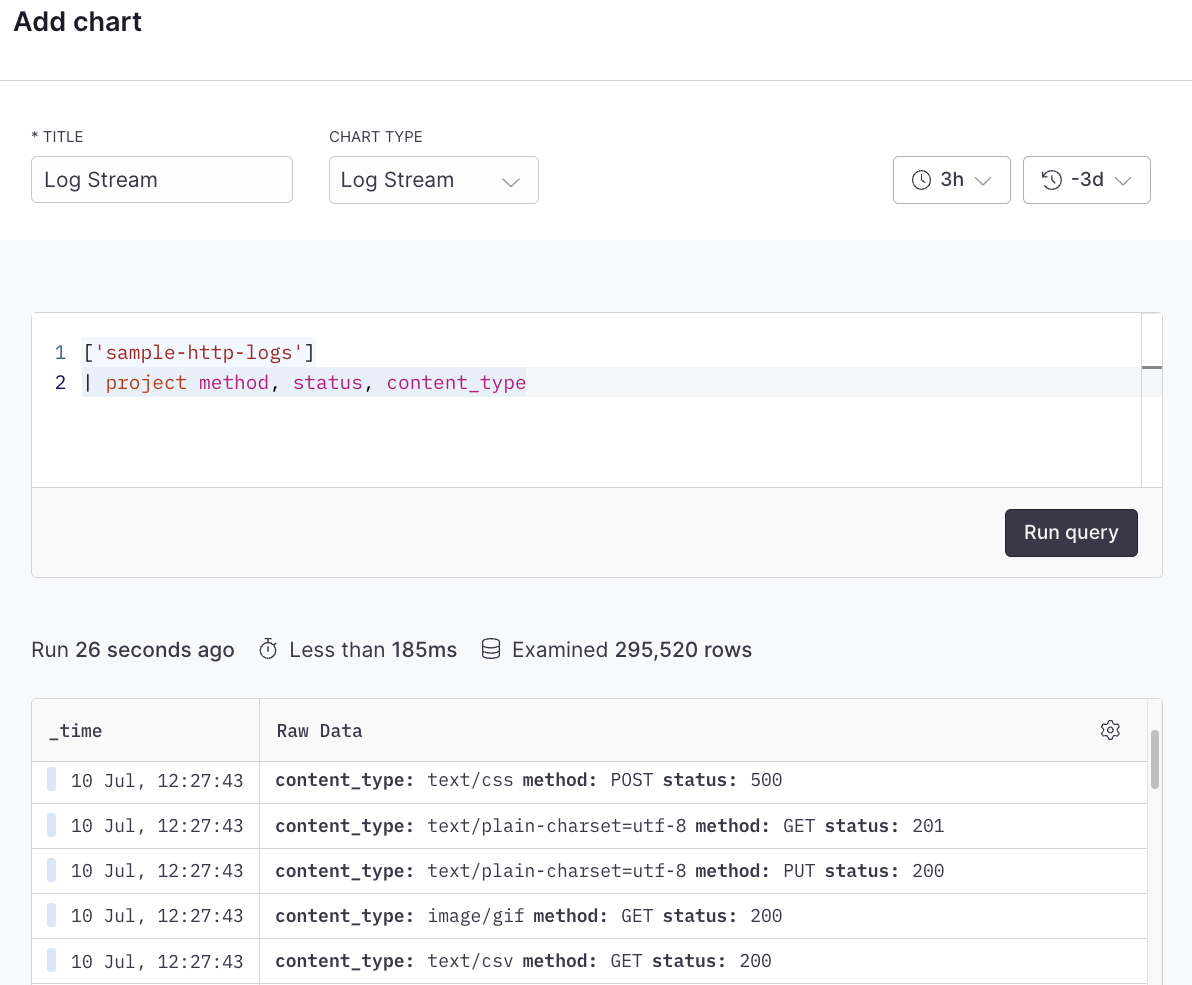
Log stream
This section explains how to create log stream dashboard elements and add them to your dashboard.
The log stream dashboard element displays your logs as they come in real-time. Each log appears as a separate line with various details. The benefit of a log stream is that it provides immediate visibility into your system’s operations. When you debug an issue or trying to understand an ongoing event, the log stream allows you to see exactly what’s happening as it occurs.
Prerequisites
- Create an Axiom account.
- Create a dataset in Axiom where you send your data.
- Send data to your Axiom dataset.
- Create an empty dashboard.
Create a dashboard element
- Go to the Dashboards tab and open the dashboard to which you want to add the log stream.
- Click Edit dashboard.
- Click Add element in the top right corner.
- Click Log stream from the list.
- Choose one of the following:
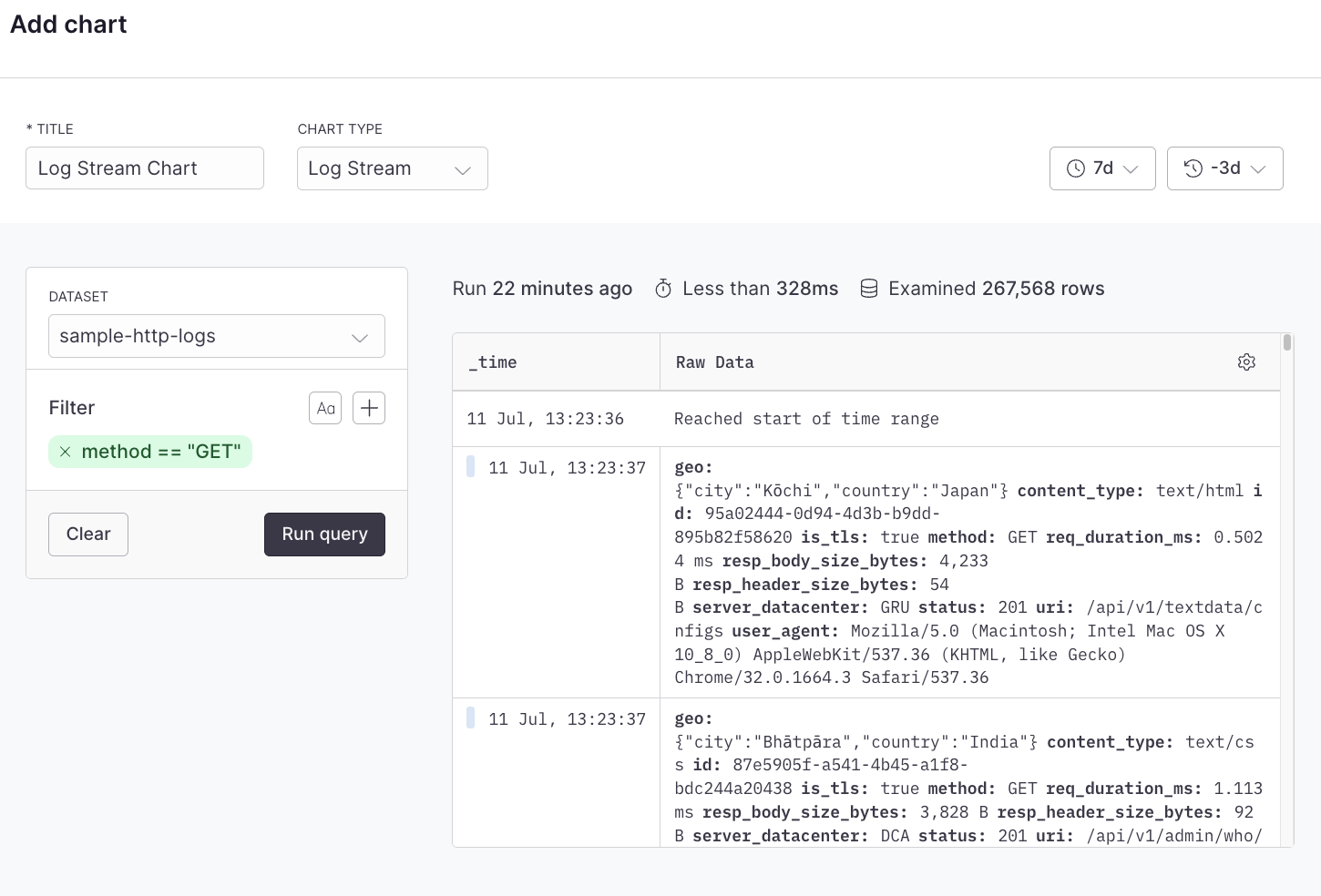
- Click Builder to create your chart using a visual query builder. For more information, see Create chart using visual query builder.
- Click APL to create your chart using the Axiom Processing Language (APL). Create a chart in the same way you create a chart in the Editor of the Query tab.
- Optional: Configure the dashboard element.
- Click Save.
The new element appears in your dashboard. At the bottom, click Save to save your changes to the dashboard.
Example with Builder
Example with APL
APL