Docs
DocumentationQuery ReferenceAPI Reference
Open Console→→
DocumentationQuery ReferenceAPI Reference

Platform overview

What is Axiom?QuickstartArchitectureFeatures
Fundamentals
Datasets
Edge deployments
Limits
Performance
Optimize usage
Requirements
Semantic conventions
Glossary
Tour
SecurityRoadmap

Send data

Reference architecturesMethods

Understand data

Console
Query
Builder
Editor
Query results
Visualize
Traces
Metrics
Correlations
Save queries
Stream
Dashboard
Create
Elements
Create
Configure
Element types
Gauge
Heatmap
Log stream
Monitor list
Note
Pie chart
Scatter plot
Statistic
Table
Time series
Sections
Configure
Filter
Annotate
Monitor
Overview
View status
Configure
Examples
Monitor types
Anomaly
Match
Threshold
Alerting
Overview
Configure
Notifier types
Custom Webhook
Discord
Email
Microsoft Teams
Opsgenie
PagerDuty
Slack
Manage
Datasets
Overview
Views
Virtual fields
Access
RBAC
Tokens
CLI
Organization
Audit log
Settings
Usage and billing
Profile
Extend
Overview
AWS Lambda
AWS PrivateLink
Cloudflare Workers
Cloudflare Logpush
Convex
Grafana
Hex
Netlify
Supabase
Tailscale
Terraform
Vercel
Intelligence
Overview
Spotlight
AI agents
Overview
MCP Server
Query cost limits
Agent-created orgs
Skills
Overview
Axiom alerting
Build dashboards
Control costs
Query metrics
SRE
Translate SPL to APL
Splunk
Overview
Splunk app
Install and configure
Commands
Examples
Portal
How it works
Set up standard mode
Set up transparent mode
Observability Cloud
SPL command support
Examples
Monitor and troubleshoot

Use cases

ObservabilityProduct analytics
LLM observability
Overview
Use Axiom AI SDK
Manual instrumentation
GenAI attributes
Redaction policies

Miscellaneous

LLMs
Overview
List of docs pages
Full docs
Query reference
FAQs
Legal
Acceptable use policy
Cookies
Data processing
HIPAA
Partner agreement
Partner program guide
Privacy policy
SLA
Terms of service
Terms of use
Understand data/Console

Table

This section explains how to create table dashboard elements and add them to your dashboard.

The table dashboard element displays a summary of any attributes from your metrics, logs, or traces in a sortable table format. Each row in the table could represent a different service, host, or other entity, with columns showing various attributes or metrics for that entity.

Prerequisites

  • Create an Axiom account.
  • Create a dataset in Axiom where you send your data.
  • Send data to your Axiom dataset.
  • Create an empty dashboard.

Create a dashboard element

  1. Go to the Dashboards tab and open the dashboard to which you want to add the table.
  2. Click Edit dashboard.
  3. Click Add element in the top right corner.
  4. Click Table from the list.
  5. Choose one of the following:
    • Click Builder to create your chart using a visual query builder. For more information, see Create chart using visual query builder.
    • Click APL to create your chart using the Axiom Processing Language (APL). Create a chart in the same way you create a chart in the Editor of the Query tab.
  6. Optional: Configure the dashboard element.
  7. Click Save.

The new element appears in your dashboard. At the bottom, click Save to save your changes to the dashboard.

Example with Builder
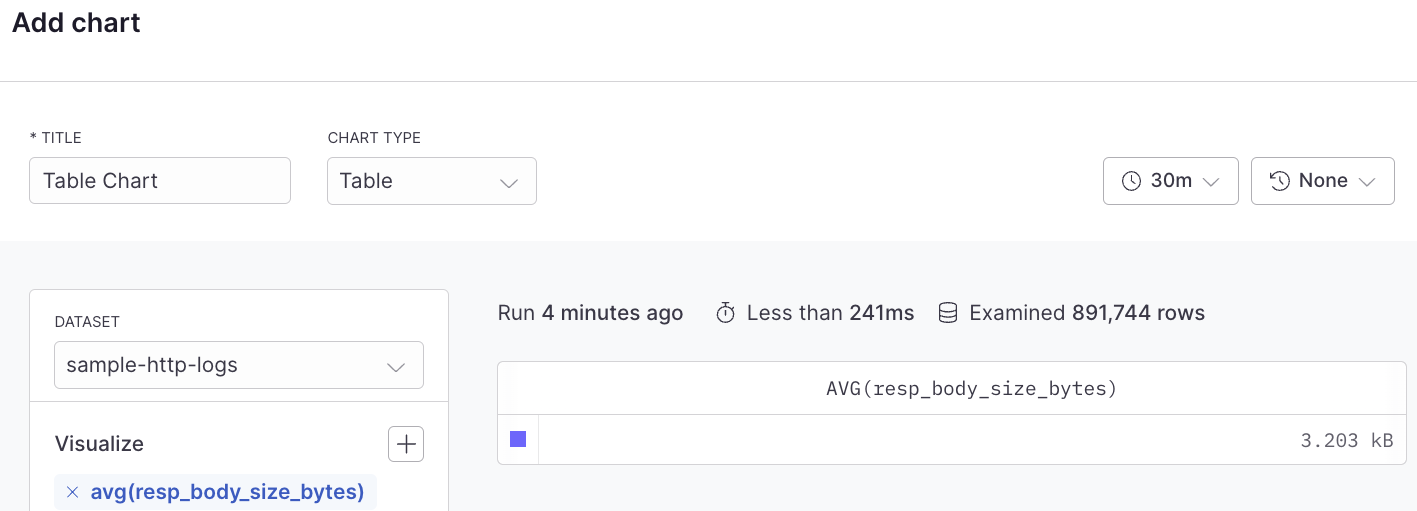
Table example with Builder

Example with APL

APL
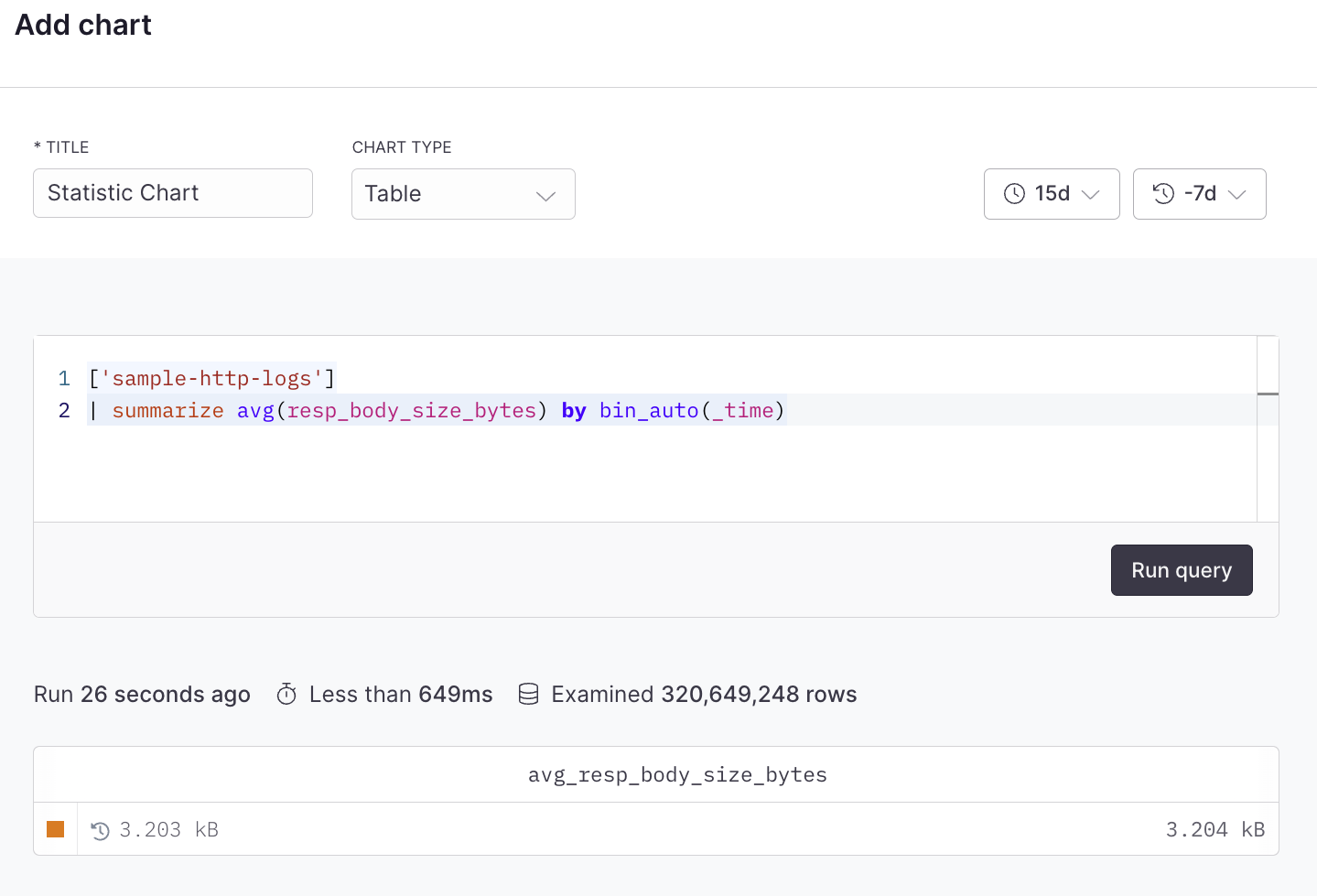
['sample-http-logs']
| summarize avg(resp_body_size_bytes) by bin_auto(_time)
Table example with APL
Was this page helpful?
Suggest edits on GitHub
PreviousStatisticNextTime series
On this page
Example with BuilderExample with APL